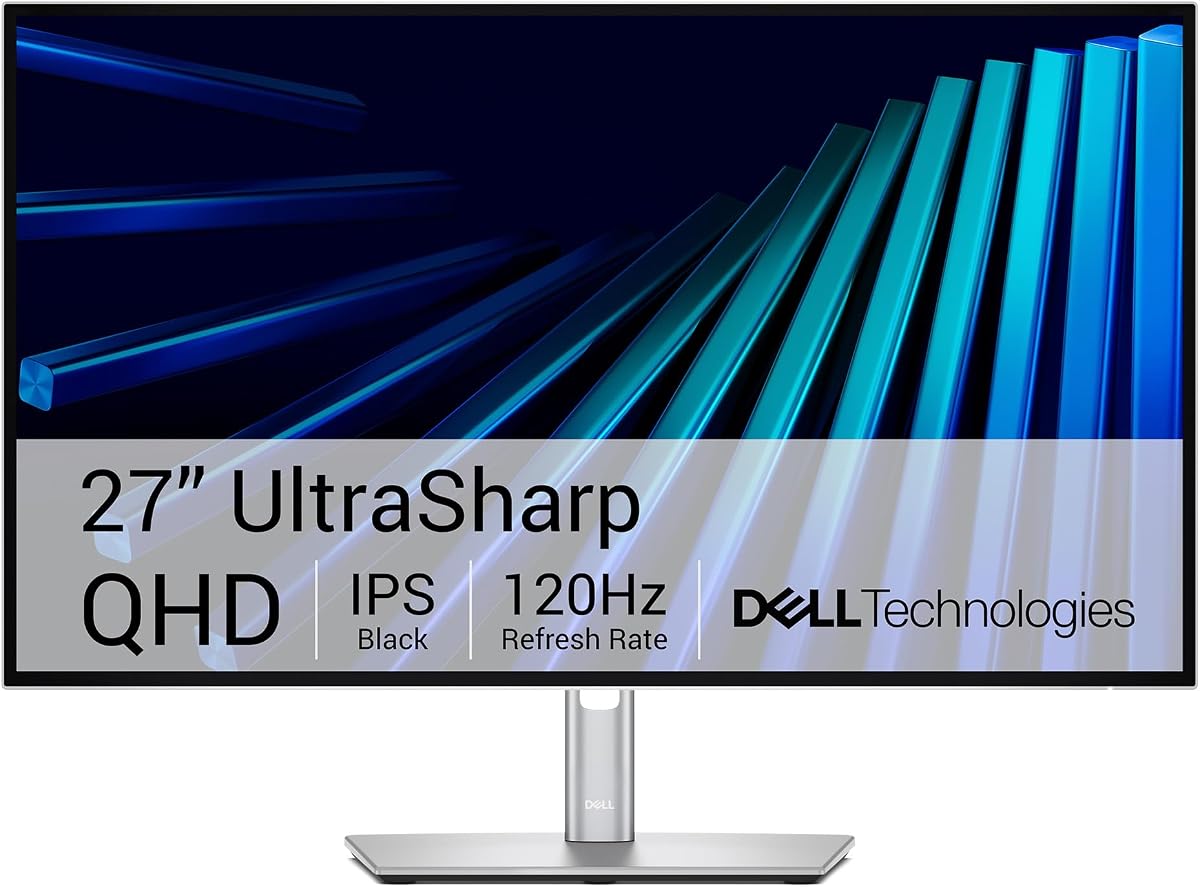
Dell UltraSharp 27 Thunderbolt Hub Monitor
5.0Editor score
Thunderbolt connectivity for speed
98 percent Display P3 coverage
Built in KVM switch
Finding the right monitor for your MacBook Pro can transform your workflow. A good display offers sharp visuals seamless connectivity and ergonomic comfort for daily tasks.
We compared ten top models focusing on resolution color accuracy USB C power delivery and macOS compatibility to help you choose the perfect screen.
Each pick highlights unique strengths from budget friendly options to premium creators displays. Note that prices and availability may change so check current listings before buying.
5.0Editor score

4.3Editor score

4.6Editor score
As an Amazon Associate we earn from qualifying purchases.
The following table compares all ten selected monitors side by side to help you evaluate specs and features at a glance.



The BenQ MA270UP is a top contender for MacBook users seeking a tailored viewing experience. It holds a solid user rating of 4.3 stars and shines with its exclusive color tuning that matches Mac display profiles perfectly.
We may earn a commission when you buy through this link, at no additional cost to you.
Its standout feature is the Mac Color Match technology which ensures vibrant P3 wide color gamut output. You can adjust brightness and volume directly from your MacBook keyboard making it feel like a native part of your setup.
While the price is higher than general monitors the integration is worth it for designers. The dual USB C ports support 90W charging for your Mac and 15W for peripherals reducing cable clutter significantly.
If you own a MacBook Pro or Air and prioritize color accuracy and seamless controls this monitor delivers. It is the ideal choice for creatives who need reliable performance and easy management.
Adjust brightness and volume via MacBook keyboard shortcuts for a unified workspace experience.
Dual USB C ports allow simultaneous charging of your laptop and peripherals with one cable.
We may earn a commission when you buy through this link, at no additional cost to you.
The Philips 24 Inch Monitor offers impressive value for those on a tight budget. With a high rating of 4.6 stars it delivers crisp visuals and a smooth viewing experience for everyday tasks.
We may earn a commission when you buy through this link, at no additional cost to you.
Its VA panel provides brighter whites and deeper blacks creating true to life images. The bezel free design on three sides enhances multi monitor setups and maximizes screen real estate for productivity.
While it lacks the high resolution of premium 4K models it handles documents and web browsing comfortably. The flicker free technology helps reduce eye strain during long work sessions which is a key comfort feature.
For students or general users who need a reliable secondary screen without spending much this is a top pick. It balances cost and quality effectively ensuring you get a solid display experience.
Flicker free technology reduces eye fatigue making it suitable for extended work periods.
Slim bezels allow for seamless side by side setups when expanded workspace is needed.
We may earn a commission when you buy through this link, at no additional cost to you.
The Dell UltraSharp 27 Thunderbolt Hub Monitor stands out with a perfect 5.0 star rating. It is engineered for creators who demand precise color and advanced connectivity features for their workflow.
We may earn a commission when you buy through this link, at no additional cost to you.
It covers 98 percent of the Display P3 color space ensuring your designs look exactly as intended. The Thunderbolt hub allows you to connect to devices and charge your laptop with a single cable.
While it uses QHD resolution rather than 4K the clarity is excellent for professional tasks. The built in KVM lets you switch between two machines using one keyboard and mouse which boosts productivity.
If you need a top tier display for high end editing or development work this monitor is ideal. Its flawless rating and robust features justify the investment for serious professionals.
Factory calibrated to cover 98 percent Display P3 for reliable visual work.
KVM switch and Thunderbolt hub reduce cable clutter and improve efficiency.
We may earn a commission when you buy through this link, at no additional cost to you.
The Dell S2725QC combines 4K resolution with a 120Hz refresh rate for a smooth viewing experience. It holds a 4.4 star rating and offers a tear free experience for both work and entertainment.
We may earn a commission when you buy through this link, at no additional cost to you.
Its 99 percent sRGB coverage ensures vivid colors for general use. The ComfortView Plus feature reduces harmful blue light without sacrificing image accuracy making it comfortable for all day use.
Audio performance is re-engineered to offer detailed sound which can reduce the need for external speakers. A single USB C cable provides up to 65W power delivery keeping your desk organized.
For users who want high resolution and smooth motion without breaking the bank this is a great option. It delivers reliable performance for multitasking and media consumption easily.
ComfortView Plus reduces blue light to protect eyes during extended screen time.
Upgraded speakers provide better sound quality for multimedia tasks.
We may earn a commission when you buy through this link, at no additional cost to you.
The LG 27UP850K-W is a versatile 4K monitor with HDR 400 support for enhanced visuals. It holds a 4.5 star rating and brings brilliant color to life with up to 95 percent DCI-P3 expression.
We may earn a commission when you buy through this link, at no additional cost to you.
You can connect your MacBook using a single USB Type-C cable that delivers up to 90W of power. This makes it easy to charge your laptop and transfer data without extra dongles.
Built in stereo speakers with Waves MaxxAudio add depth to media consumption. The Switch app transforms your screen into a multitasking hub helping you manage work and streaming efficiently.
If you watch HDR content or need strong color performance this monitor is a solid pick. It balances high resolution with useful features for productivity and entertainment needs.
High DCI-P3 coverage brings lifelike colors for creative and media work.
90W USB-C charging simplifies your desk setup significantly.
We may earn a commission when you buy through this link, at no additional cost to you.
The Dell 24 Plus Monitor is a compact choice with a high 4.7 star rating. It features a 144Hz refresh rate and 1ms response time for a smooth tear free viewing experience.
We may earn a commission when you buy through this link, at no additional cost to you.
Its 1500:1 contrast ratio brings clarity to FHD visuals. The TÜV certified display reduces harmful blue light emissions while maintaining image quality for eye comfort.
You can adjust the monitor for height tilt and pivot to suit your preference. This flexibility helps maintain proper posture during long work sessions.
For users with limited desk space who want smooth visuals and adjustable ergonomics this is a good fit. It is practical for general computing and light gaming needs.
144Hz refresh rate ensures smooth scrolling and responsive visuals.
Multiple adjustability options help reduce neck strain.
We may earn a commission when you buy through this link, at no additional cost to you.
The LG 27US500-W offers a borderless design for a clean modern aesthetic. It holds a 4.4 star rating and displays deeper blacks and vivid colors in UHD clarity with 1000:1 contrast.
We may earn a commission when you buy through this link, at no additional cost to you.
It supports HDR10 content to bring brilliant color to life with up to 90 percent DCI-P3 expression. The ergonomic stand makes it easy to adjust the screen for optimal viewing angles.
Onscreen Control lets you customize the workspace by splitting the display with simple clicks. This is useful for multitasking and managing multiple windows efficiently.
For users who value style and high resolution at a fair price this monitor works well. It is a reliable choice for everyday tasks and media consumption.
Borderless design maximizes screen real estate and looks sleek.
Onscreen Control simplifies window management with mouse clicks.
We may earn a commission when you buy through this link, at no additional cost to you.
The BenQ PD2706QN is a Mac ready monitor designed for color accuracy and consistency. With a 4.5 star rating it offers 95 percent P3 coverage and factory calibrated color with Delta E under 2.
We may earn a commission when you buy through this link, at no additional cost to you.
The anti glare nano matte panel diffuses ambient light to preserve contrast and reduce glare. This ensures enhanced eye comfort during long design sessions under various lighting conditions.
It supports 90W USB C synchronization for seamless charging and data transfer through a single cable. ICCsync ensures color profiles match between your Mac and monitor for consistent results.
For designers who need reliable color matching this monitor is a strong candidate. It delivers professional grade performance with ergonomic adjustments for comfort.
Factory calibration and ICCsync maintain consistent visual output.
Nano matte panel reduces reflections for comfortable viewing.
We may earn a commission when you buy through this link, at no additional cost to you.
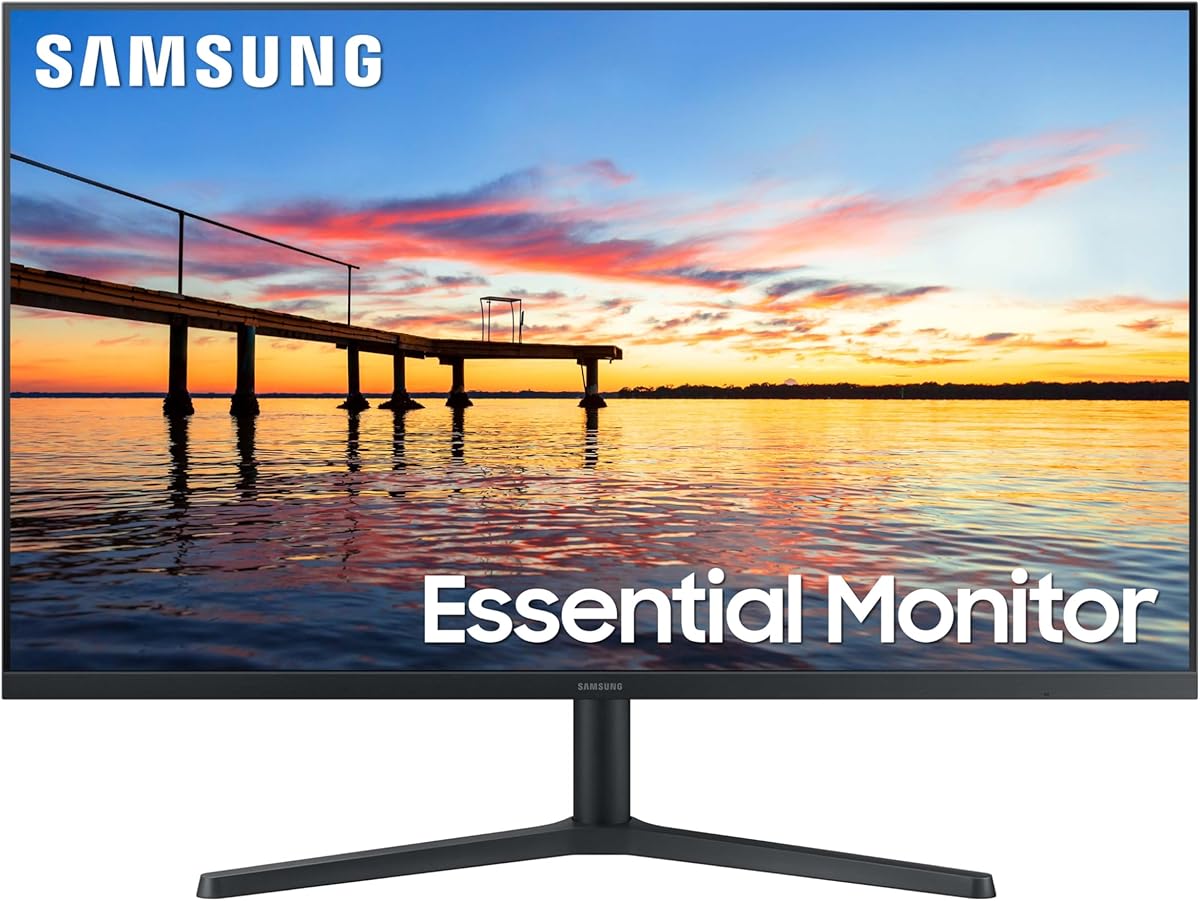
The Samsung 32 Flat Monitor provides a large screen for immersive viewing. It holds a 4.5 star rating and features a borderless display that brings a clean aesthetic to any space.
We may earn a commission when you buy through this link, at no additional cost to you.
AMD FreeSync keeps the refresh rate in sync to reduce image tearing. The 75Hz rate ensures every frame moves smoothly for fluid scenes without lag.
Eye Saver Mode minimizes blue light while flicker free technology removes screen flicker. These features reduce eye strain for less strenuous extended computing sessions.
If you want a large display for multitasking without a high price tag this is a great pick. It balances size and eye care features well for home or office.
32 inch screen provides ample space for split multitasking.
Built in eye care tech reduces strain during long use.
We may earn a commission when you buy through this link, at no additional cost to you.
The LG 27U631A-B delivers vivid visuals at wide viewing angles with QHD resolution. It holds a 4.3 star rating and features a 100Hz refresh rate for seamless motion and fluidity.
We may earn a commission when you buy through this link, at no additional cost to you.
Bold color from HDR10 enhances picture quality. The slim stand maximizes desktop efficiency while the borderless design keeps focus on the screen.
USB Type-C provides 15W power delivery for charging small devices. Reader Mode reduces blue light to help reduce eye fatigue during reading tasks.
For users seeking a balanced monitor with smooth motion and good colors this is a solid choice. It fits well in both home and professional settings.
100Hz refresh rate ensures fluid visuals for work and gaming.
Slim stand and borderless design save valuable desk space.
We may earn a commission when you buy through this link, at no additional cost to you.
Selecting the right monitor requires looking at key features that complement macOS and your daily workflow.
Resolution determines how sharp your content looks. 4K is ideal for high resolution work while QHD is a good balance for general use. Size should match your desk space and personal preference for immersion.
Choose 4K for detailed design work and QHD or FHD for casual browsing if space is limited.
Color accuracy is crucial for creatives. Look for wide color gamuts like P3 or sRGB and factory calibration. This ensures your work looks consistent across devices.
Prioritize monitors with high DCI-P3 coverage and low Delta E values for professional color work.
A USB C port simplifies connectivity by carrying video and data. Power delivery allows the monitor to charge your MacBook. Higher wattage like 90W is better for fast charging.
Ensure the monitor supports at least 65W USB C power to keep your laptop powered during work.
Higher refresh rates like 120Hz provide smoother motion for scrolling and gaming. Response time affects ghosting. For standard office work 60Hz is often enough.
Go for higher rates if you want smoother visuals for media consumption or light gaming.
Comfort is key for long sessions. Look for monitors with height tilt pivot and swivel adjustments. This helps maintain proper posture and reduce strain.
Select a stand that allows you to set the screen at eye level for best comfort.
Some monitors offer Mac specific features like brightness control from your keyboard or color matching. These enhance the user experience significantly for Apple devices.
Consider models with macOS controls if you want a seamless integrated workflow.
Prices vary widely. Determine your priorities and set a budget. Basic monitors offer great value while premium ones cost more for specific features.
Balance your needs with cost to ensure you get the most value for your spending.
Check for HDMI DisplayPort and USB hubs. Multiple ports allow you to connect other peripherals easily without extra adapters.
Choose a monitor with enough ports to avoid clutter and dongles on your desk.
Connect your MacBook to the monitor using a high quality USB C or HDMI cable to ensure stable signal transmission. Ensure the monitor is set to the correct input source immediately after plugging in.
Clean the screen regularly with a soft microfiber cloth to remove dust and smudges. Avoid using harsh chemicals that can damage the coating or panel.
Adjust brightness and contrast settings in macOS display preferences to match your environment. This reduces eye strain and improves viewing quality throughout the day.
Most modern monitors work with any MacBook Pro that has USB C ports. You may need an adapter for older models with Mini DisplayPort or HDMI inputs. Check the specific connectivity requirements.
MacBook Pro displays use the P3 color space. A monitor with high P3 coverage ensures colors match what you see on your laptop. This is vital for photo and video editing accuracy.
Yes macOS supports 4K resolution well. Using 4K provides sharper text and more space for multitasking. You may need to scale display settings for optimal text size.
65W is standard for charging most MacBook Air and Pro models. For larger Pros faster charging consider 90W or higher. Ensure the cable supports the power delivery standard.
A KVM switch lets you use one keyboard and mouse with multiple computers. This saves desk space and simplifies workflow if you switch between a Mac and PC.
Yes many listed models offer high color accuracy and wide gamuts. Look for factory calibration and Display P3 coverage for best results in design and video editing.
Some monitors support daisy chaining via USB C. This allows you to connect multiple screens using a single connection. Check the specs for MST support.
We reviewed ten excellent options ranging from budget picks to premium displays. The BenQ MA270UP offers seamless macOS integration while the Dell UltraSharp shines for professionals.
Consider your primary use case such as color accuracy or smooth motion when deciding. Your needs and budget should guide whether you prioritize resolution or features like power delivery.
Always check current prices and availability as they can change over time. Investing in the right monitor can greatly improve your daily computing experience.